
Downloading, Installing and Activating a Trading Bot on MetaTrader 4 & 5
1. Downloading the Trading Bot File
1.1 Generating the Bot
After configuring your trading bot using the FX-eTrader Bot Builder, click the "Build the Bot" button. The platform will automatically generate an Expert Advisor (EA) file based on your selected strategy and parameters.
1.2 Downloading the EA File
Once the bot is generated, a download button or link will appear.
- Click on the Download button.
- Your browser will prompt you to save the file.
- Choose a clear and accessible location on your computer (for example: Documents → Trading Bots).
- Save the file.
File format:
- .ex4 → MetaTrader 4 bot
- .ex5 → MetaTrader 5 bot
Important: Do not rename the file.
2. Installing and Activating the Bot on MetaTrader 4
2.1 Opening the MetaTrader 4 Data Folder
- Open your broker's MetaTrader 4 platform.
- In the top menu, click File → Open Data Folder:
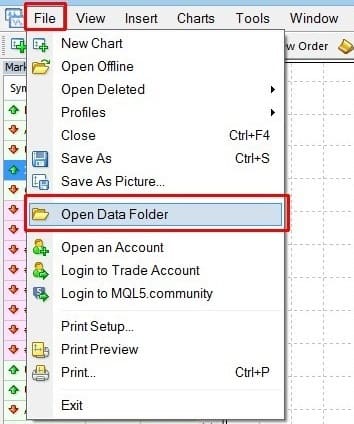
- A system window will open showing MetaTrader’s working directories.
2.2 Installing the EA File
- Open the folder MQL4

- Open the folder Experts
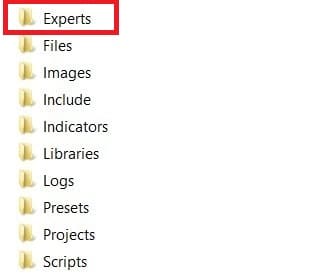
- Copy your downloaded .ex4 file.
- Paste it into the Experts folder.
2.3 Restarting MetaTrader 4
Close MetaTrader 4 completely, then reopen it so the platform can detect the new Expert Advisor.
2.4 Enabling Auto Trading in MetaTrader 4
- In the top toolbar, locate the "AutoTrading" button.
- Click it so it turns green

Then verify global settings:
- Go to Tools → Options → Expert Advisors.
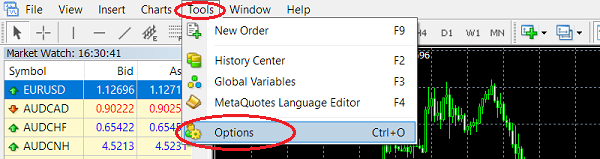
- Check:
- ✔ Allow automated trading

- Click OK.
2.5 Attaching the Bot to a Chart
- Open the chart of the symbol you want to trade.
- Open the Navigator panel (Ctrl + N).
- Expand Expert Advisors.
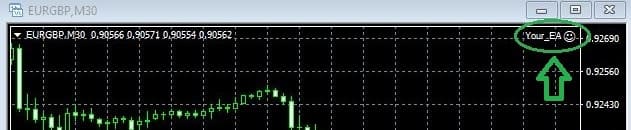
- Drag your bot onto the chart.
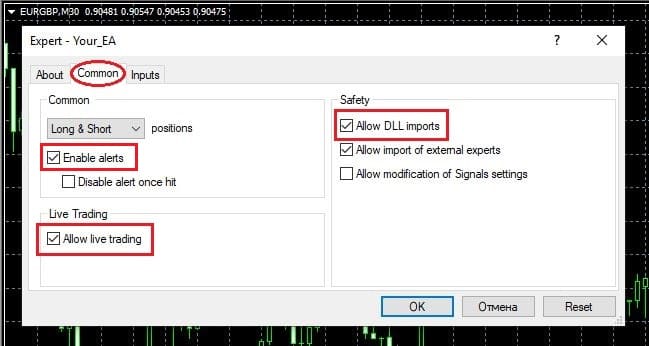
- Confirm settings and click OK.
3. Installing and Activating the Bot on MetaTrader 5
3.1 Opening the MetaTrader 5 Data Folder
- Open your broker's MetaTrader 5 platform.
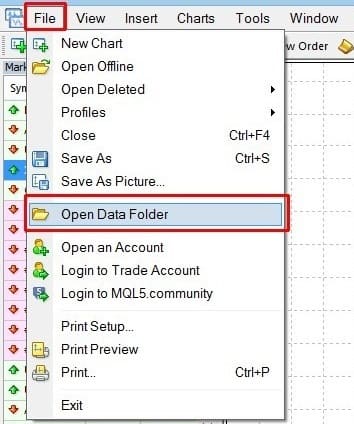
- Click File → Open Data Folder.
3.2 Installing the EA File
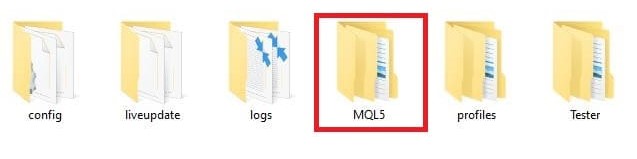
- Open the MQL5 folder.
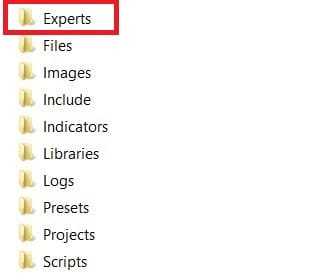
- Open the Experts folder.
- Copy your .ex5 file.
- Paste it into the Experts folder.
3.3 Restarting MetaTrader 5
Restart MetaTrader 5 to allow the platform to load the new bot.
3.4 Enabling Algorithmic Trading in MetaTrader 5
- Click the "Algo Trading" button in the toolbar.
- Ensure it is enabled (green).

Check permissions:
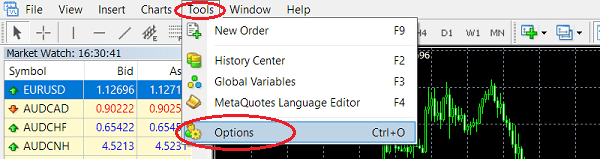
- Go to Tools → Options → Expert Advisors
- Enable:
- ✔ Allow algorithmic trading
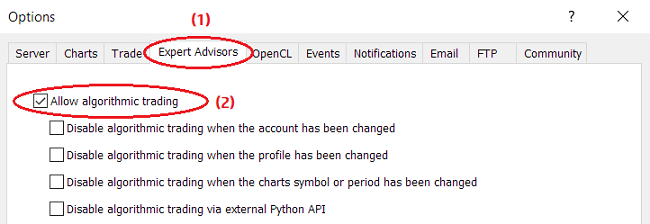
- Click OK.
3.5 Attaching the Bot to a Chart
- Open the desired trading instrument chart.
- Open the Navigator panel.
- Expand Expert Advisors.
- Drag the bot onto the chart.
-
Confirm settings:
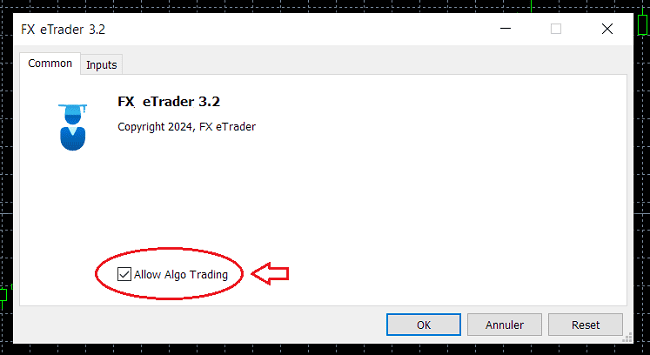
- Click OK.
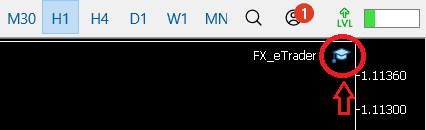
4. Final Checklist Before Live Trading
- ✔ Correct trading symbol and timeframe
- ✔ Auto Trading / Algo Trading enabled
- ✔ Sufficient account balance and margin
- ✔ Correct EA inputs loaded
- ✔ Tested on demo account first
Your trading bot is now fully installed and operational on MetaTrader 4 or MetaTrader 5.