
Trend-Following Hedging Trading Strategy
1. What is Trend-Following Hedging?
The Trend-Following Hedging strategy combines trend-based trade entries with hedging techniques. It opens a primary trade in the direction of the trend and places one or more hedge trades when the market moves temporarily against that trend. This helps maintain trend exposure while managing pullbacks and reducing drawdown. This strategy is optimized for trending markets.
2. Creating a New Trend-Following Hedging Bot
To create a Trend-Following Hedging bot:
- 1. Access the Bot Builder: Log in to FX eTrader and select "Create New Bot".
- 2. Choose Strategy: Under “Bot Strategy”, select Hedging → Trend-Following Hedging.

- 3. Configure Parameters: Fill in Trend-Following Setup, Hedge Orders, and Trade Management settings below.
3. Step (1): Trend-Following Setup
This section defines how the bot will open primary trend trades.
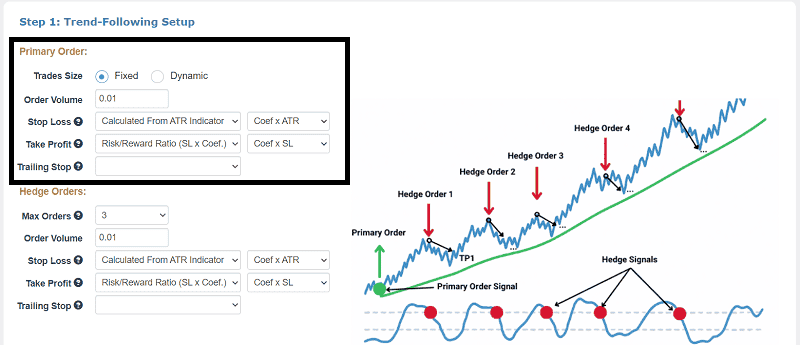
3.1 Primary Order: Trades Size
Select whether the trade volume is Fixed (same volume on every trade) or Dynamic (volume based on risk percentage of account balance).
3.2 Order Volume / Risk Per Order
If using Fixed sizing, set the exact trade volume. If using Dynamic, choose the risk percentage per order (e.g., 0.25 %, 0.5 %, etc.). :contentReference[oaicite:3]{index=3}
3.3 Stop Loss Settings
Define how the Stop Loss for the primary trend trade is calculated:
- Calculated From ATR Indicator: Based on market volatility.
- Fixed Distance: Set pip distance manually.
- Fractal High/Low: Uses the most recent fractal extremes.
3.4 Take Profit Settings
Choose how the Take Profit target is defined:
- Risk/Reward Ratio: Target based on a multiple of Stop Loss.
- Calculated From ATR: Based on market volatility.
- Fixed Distance: Specific pip target.
3.5 Trailing Stop
If enabled, the trailing stop will follow price movement to lock in profits. Options include:
- Fixed Distance in pips
- Fractal High/Low
- Breakeven
Also set the percentage at which the trailing stop becomes active (25 %, 50 %, 75 %).
4. Step (2): Hedge Orders
Define how hedge trades behave when the market moves against the primary trend.
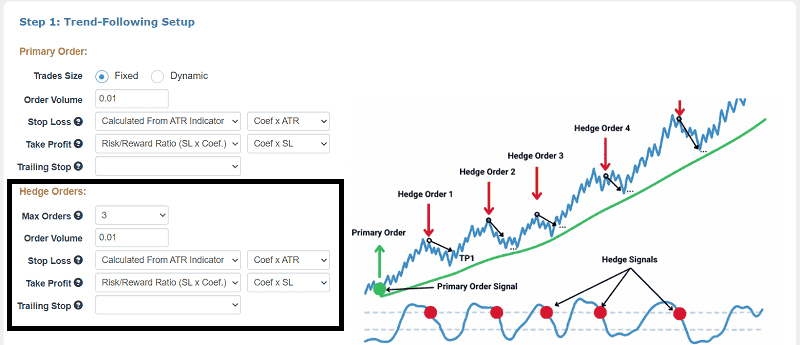
4.1 Max Orders
Set how many hedge orders the bot can open (e.g., 1–20). More hedge orders provide greater coverage during pullbacks but increase potential exposure.
4.2 Order Volume & Risk Per Order
Configure hedge order sizes and the risk percentage per hedge entry. Larger hedge sizes can recover drawdowns faster but carry more risk.
4.3 Hedge Stop Loss and Take Profit
Define stop loss and take profit for hedge trades using the same calculation options as the primary trade (ATR-based, Risk/Reward, or Fixed Distance).
4.4 Hedge Trailing Stop
Optional trailing stop settings for hedge orders to lock in profit as price reverses back toward the trend.
5. Step (3): Trade Management
Control when the bot should close trades and manage daily risks.

5.1 Close Orders at Max Profit
Enable automatic closure of all orders when a profit target (in pips) is reached.
5.2 Close Orders at Max Loss
Enable closure of all orders when a maximum loss threshold (in pips) is hit.
5.3 Daily Profit & Loss Limits
- Max Profit Daily: Daily profit limit expressed as a percentage of capital.
- Max Loss Daily: Daily loss limit to halt further trading once reached.
These settings prevent excessive risk and help enforce discipline.
6. Step (4): Defining Entry and Exit Signal Rules for Primary and Hedging Orders
This section defines how the bot enters the market and how it reacts to trend changes.
6.1 Entry Signals
Select one or more technical indicators that will trigger the opening of the primary trend-following trade. These signals determine when market conditions are favorable for entering a position.
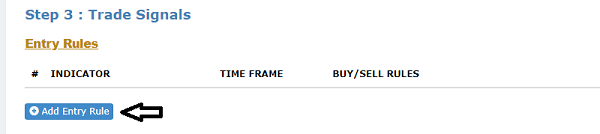
- Moving Average crossover
- RSI overbought / oversold levels
- MACD signal confirmation
- ...

6.2 Trend Filter (Optional)
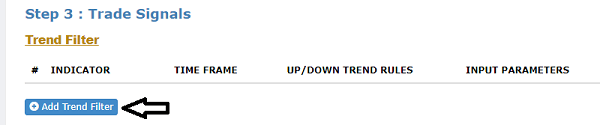
The trend filter ensures that trades are only opened in the direction of the dominant market trend. This significantly improves trade quality and reduces false signals.
- Only Buy in Uptrend
- Only Sell in Downtrend
- Ignore signals against the trend
6.3 Close Orders on Trend Change
When enabled, all open trades (primary and hedge positions) will be closed automatically if the trend direction changes. This feature protects your capital against strong market reversals.
6.4 Exit Rules (Optional)
Exit Rules allow you to define trade exit conditions using technical indicators, in addition to the default take profit and stop loss settings.
These optional rules enable you to set custom exit logic for each trade. When an exit signal is triggered, the bot closes only profitable trades, meaning trades with a positive profit, while leaving losing trades open.
This approach provides greater control over trade exits and can help maximize profits while improving overall position management.

- Close on Opposite Signal: Close a trade when the entry signal reverses. For example, if your bot entered on a bullish signal, it will close the trade when a bearish signal appears.
- Close After X Bars: Automatically close trades after a specified number of candlesticks (bars) have passed. This is useful for short-term strategies.
These optional exit rules add flexibility to the Trend-Following Hedging strategy and help improve risk control, especially during periods of reduced volatility or uncertain trend conditions.
7. Generating and Installing Your Bot
Once configured:
- Click "Build the Bot" to generate your EA file.
- Download the EA (.ex4 / .ex5) and install in MetaTrader (File > Open Data Folder > MQL4/MQL5 > Experts).
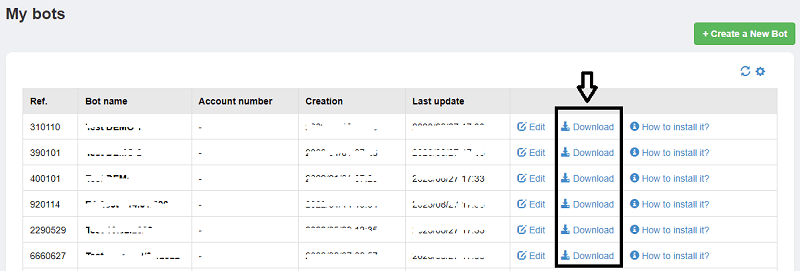
- Restart MetaTrader, attach EA to chart, and enable automated trading.