
Reverse Grid Trading Strategy - Guide
1. Introduction to Reverse Grid Trading
The Reverse Grid strategy is a grid-based trading method that operates in the opposite direction of the Classic Grid. Instead of buying at lower prices and selling at higher prices, it opens sell positions on downward movements and buy positions on upward movements. This strategy is particularly suitable for trending markets, helping you capitalize on strong price movements while managing risk.
- Adapts to trending markets
- Executes orders based on price momentum
- Reduces exposure during sideways markets
2. Creating a New Reverse Grid Bot
Follow these steps to create a Reverse Grid bot using FX eTrader:
- Access Bot Creation: Log in to your FX eTrader account and click "Create New Bot".
- Select Strategy: Choose Reverse Grid as the trading strategy.

- Configure Parameters: Adjust all settings according to your trading goals and risk management preferences.
3. Step 1: Grid Setup
This step defines the grid structure, which controls order placement and spacing.
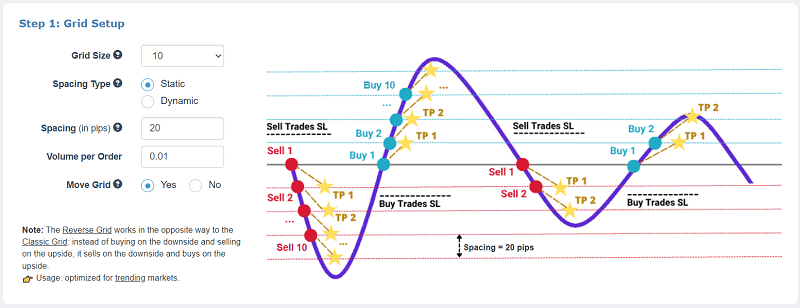
3.1 Grid Size (Number of Orders)
Specifies the maximum number of active orders in the grid. Larger grids provide more coverage but also increase exposure.
3.2 Spacing Between Orders
Determines the distance between consecutive grid orders. You can choose:
- Static: Fixed number of pips between orders.
- Dynamic: Based on ATR (Average True Range) multiplier (1x-6x), which adjusts spacing according to market volatility.
3.3 Volume per Order
Defines the lot size for each grid order. Proper sizing ensures that you balance potential profit and risk exposure.
3.4 Move Grid (Trailing Grid)
When enabled, the grid moves automatically following price trends. This keeps orders optimally positioned relative to the current market price.
3.5 Stop Loss / Dynamic Grid Stop
Sets the maximum loss point for the entire grid. With the trailing grid enabled, the stop loss will adjust dynamically, protecting your capital as the market moves.
4. Step 2: Trade Management
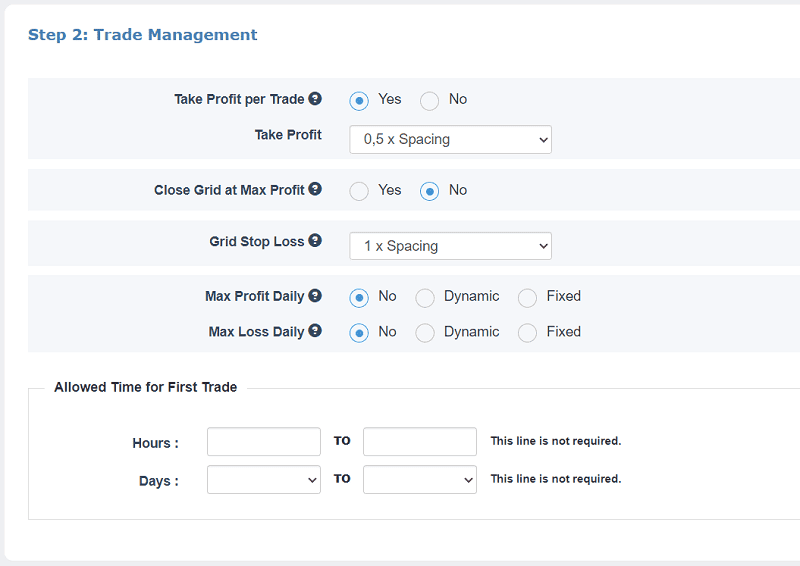
These settings control how trades are managed, including profits, losses, and daily limits.
4.1 Take Profit per Trade
Sets the profit target for individual orders within the grid. Typically, it should be equal to or slightly higher than the spacing between orders.
4.2 Max Grid Profit
Defines the total profit target for the entire grid. When this level is reached, all grid orders are closed automatically.
4.3 Grid Stop Loss
Specifies the maximum allowable loss for all orders in the grid, acting as a safety net to prevent large drawdowns.
4.4 Daily Profit & Loss Limits
- Max Profit Daily: Stops new trades when the daily profit target is reached.
- Max Loss Daily: Stops new trades when the daily loss limit is reached.
4.5 First Trade Execution Period
Defines the time window in which the first trade of the grid is allowed. This ensures trading aligns with market conditions and liquidity periods.
5. Step 3: Entry Rules for the First Trade
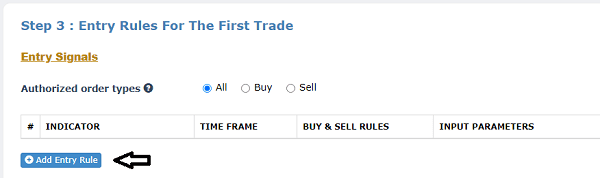
Set the conditions for the bot to open the first grid trade.
5.1 Authorized Order Types
Choose whether the bot can open Buy, Sell, or both types of orders.

5.2 Entry Signals
Select technical indicators or conditions that trigger the first trade, such as:
- Moving Averages crossovers
- RSI overbought/oversold levels
- Custom indicator signals
5.3 Trend Filter (Optional)
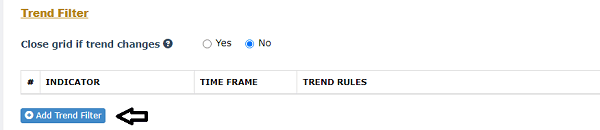
Use a trend filter to ensure trades align with the market trend, improving the likelihood of successful positions.
5.4 Close Grid if Trend Changes
Enable this option to automatically close all grid trades if the trend reverses.
5.5 Optional Exit Rules
Exit Rules allow you to define trade exit conditions using technical indicators, in addition to the default take profit and stop loss settings.
These optional rules enable you to set custom exit logic for each trade. When an exit signal is triggered, the bot closes only profitable trades, meaning trades with a positive profit, while leaving losing trades open.
This approach provides greater control over trade exits and can help maximize profits while improving overall position management.

- Close on Opposite Signal: Close trade when entry signal reverses.
- Close After X Bars: Close trade after a predefined number of candlesticks, useful for short-term strategies.
6. Generating and Installing Your Reverse Grid Bot
6.1 Generate the Bot
After setting all parameters, click "Build the Bot" to generate the EA file for MetaTrader.
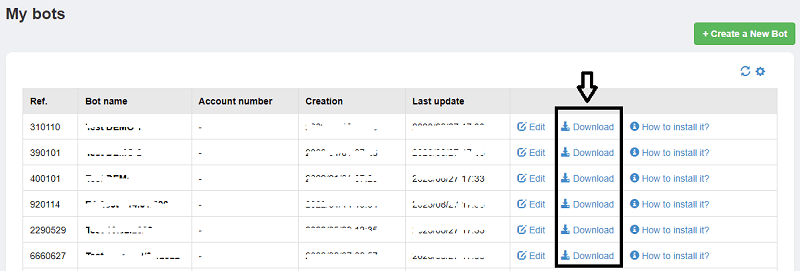
6.2 Download the EA
Save the generated EA file (.ex4 or .ex5) to a convenient location on your computer.
6.3 Install on MetaTrader
- Open MetaTrader → File → Open Data Folder → MQL4/MQL5 → Experts
- Copy the downloaded EA file into the Experts folder
- Restart MetaTrader and enable automated trading
6.4 Activate the Bot
Drag the EA onto the chart of the desired trading pair. Ensure automated trading is enabled in platform settings.